
Make TikToks like the Pros
June 15, 2026 · Alex Grant
| Parameter | Recommended Setting / Specification |
|---|---|
| Format | Most Compatible (H.264) |
| Resolution | FHD 1080P |
| Frame Rate | 30 or 60 FPS |
| Bitrate / Quality | 8 to 12 Mbps (at 30 FPS) 12 to 15 Mbps (at 60 FPS) |
| Max File Size (Android) | Under 72MB |
| Max File Size (iOS) | Under 287MB |
TikTok limits your video’s resolution to 1080p. Putting a lot of hard work into editing a high-resolution video that looks (and sounds) great only to have it look blurry after uploading it is always frustrating.
With a little bit of planning during your editing process and choosing the right upload settings, you can get great results despite TikTok’s limitations.
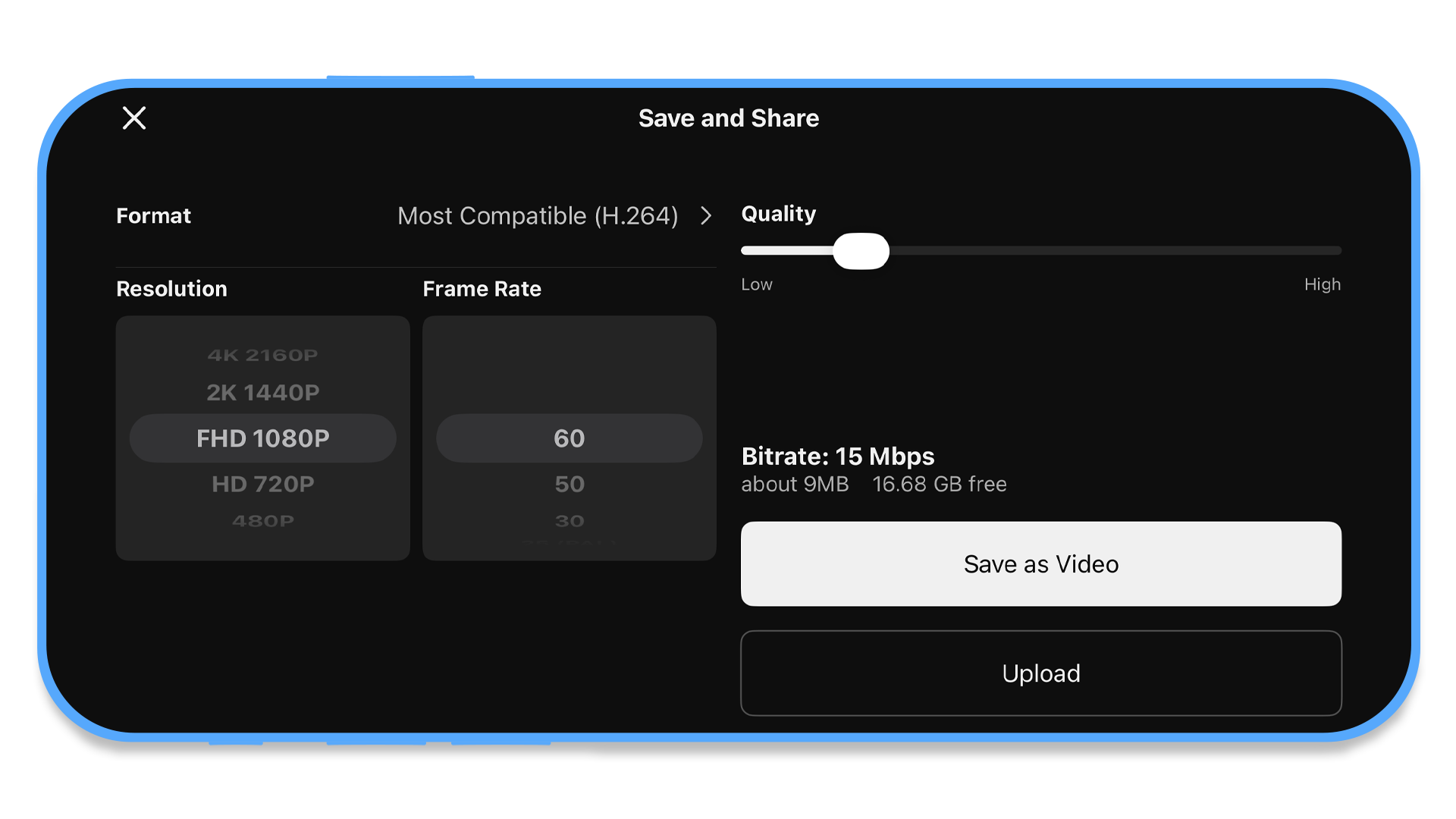 What does bitrate have to do with export quality? Glad you asked. Check out this blog post to learn more about this important aspect of saving your KineMaster video.
When you upload your video to TikTok (or any social media site, really), your network speed can play an oversized role in the quality of your video. TikTok has two important settings that you can adjust to ensure that your video is received at its highest quality.
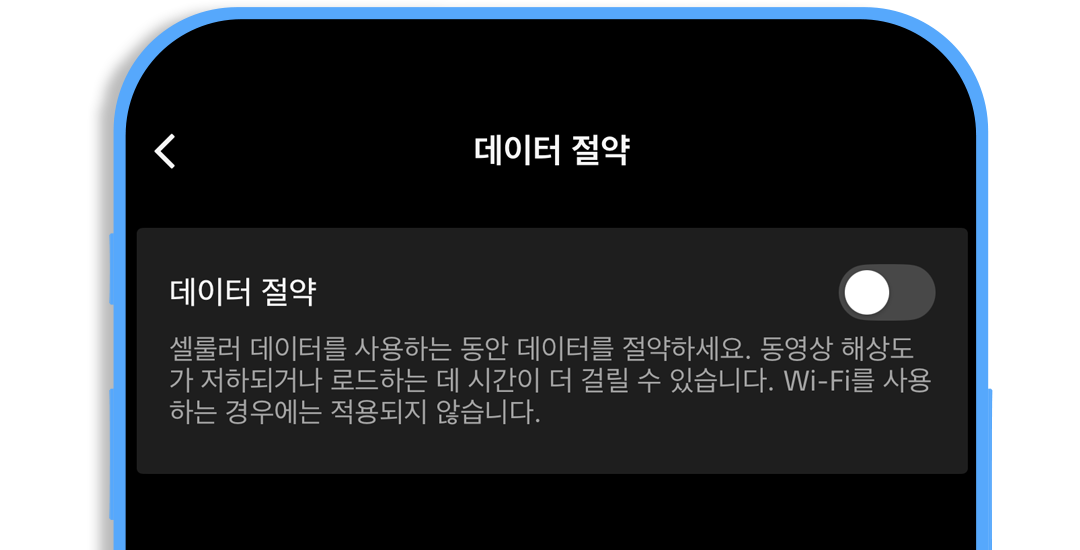
If your cellular data plan has a limit (and many do), you can reduce TikTok’s impact on your monthly data budget with the Data Saver option turned on. However, if you’re uploading to TikTok, you’ll want to turn Data Saver off. This is true even if you’re uploading on a wifi network.
I did all this and my video still doesn’t look high resolution!
Check your media resolutions in KineMaster. Save your video at the resolution of the lowest-quality video clip or image in your project. When you save a KineMaster project at a higher resolution than your media, it will automatically scale up (with poor results). If you need to increase the resolution of a low-quality video or image, try applying the Super Resolution tool first.When you save your video, make sure that you are choosing settings that optimize the quality for TikTok.
If it’s not just your video, but every video TikTok is sending your way, the problem might be with your network speed or because you have Data Saver turned on. Double-check your network speed with an online tool like Cloudflare and dig into your settings to toggle Data Saver.
FAQ
Why does my video look blurry when I watch it on TikTok?
Double-check that you’ve saved your video at 1080p in KineMaster and that you’ve turned off Data Saver. You may also want to double-check that your cellular or wifi network is operating at a high enough speed to view TikTok at their best quality.
What does TikTok’s Data Saver setting do?
TikTok’s Data Saver setting increases the compression to reduce the amount of data each video you watch requires. However, this comes at the expense of video quality. It’s important to keep in mind that other viewers watching your video may or may not have Data Saver turned on– which will impact the quality of your video for them, but is outside of your control.
How do I upload a video in high quality to TikTok?
Be sure to save your video using the optimal settings for TikTok: 1080P at 30 or 60 FPS and keep your bitrate under 30Mbps. Prior to uploading your video, double-check that Data Saver is turned off.
This article was written and reviewed by the KineMaster Editorial Team.

Two apps, one subscription!
Subscribers to KineMaster Premium get Spring Premium for free!
Create Mind-blowing Videos, Fast and Easy now!