
A Brand-new KineMaster Editing Experience!
October 6, 2026 · Alex GRANT
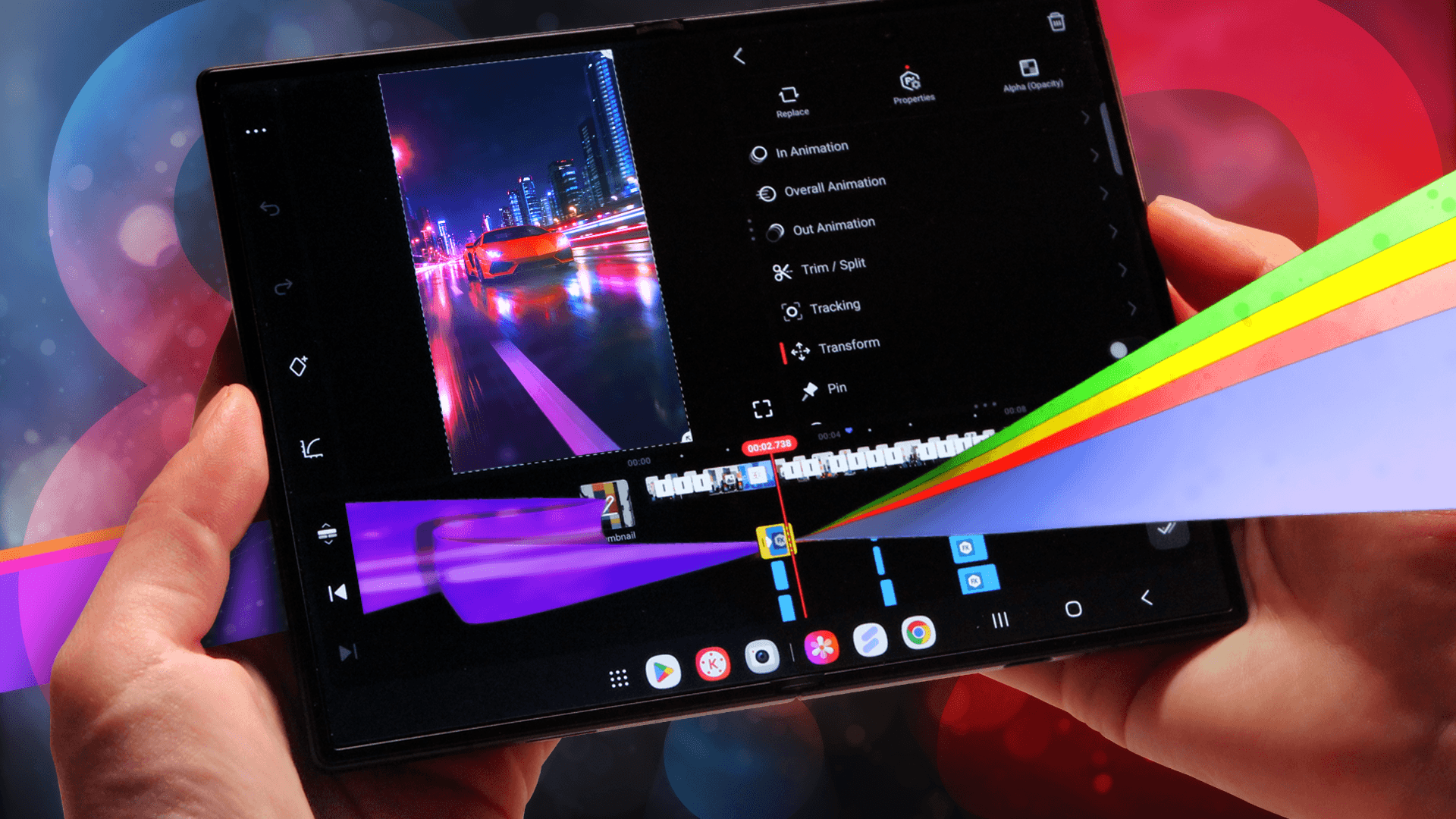
KineMaster version 8.2 gives you new ways to make your editing workflow smoother, with tools and features that make editing fast and deliver impressive results.
Make Your Videos Shine with AI Templates
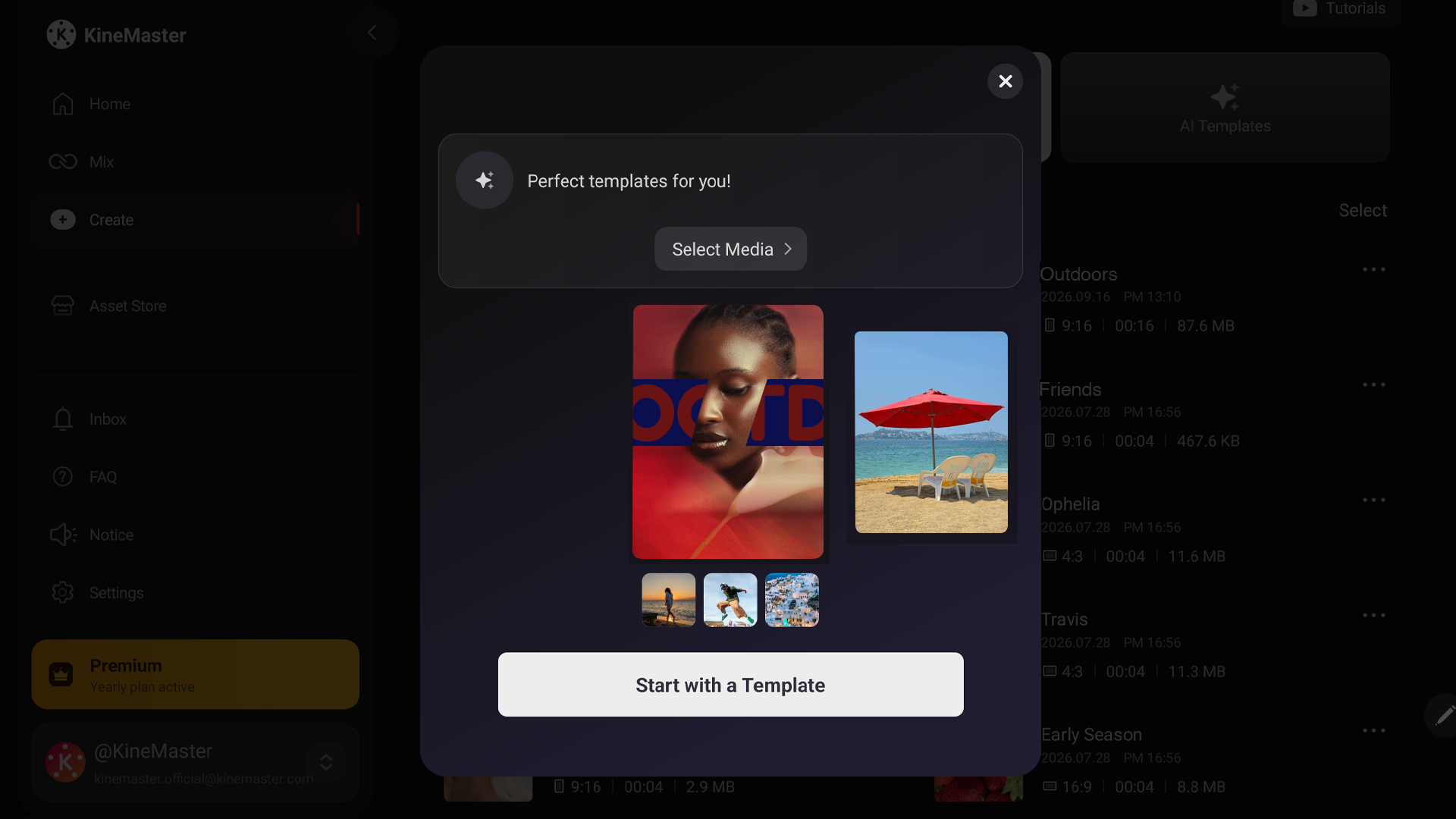 Video templates have a powerful new AI companion. AI Templates let you scan up to three videos or images saved in your Photos app (iOS) or Gallery app (Android). AI matches your media to several video templates designed in styles that match the mood.
Select a template that you like and then add up to 4 additional video clips or photos. Then, you can save your video right away or switch to the editor to customize your video.
AI Templates, like all KineMaster’s AI tools, runs entirely on your phone or tablet. Your videos and images never leave your device when you use AI Templates.
Easy Media Replacement for Your Templates
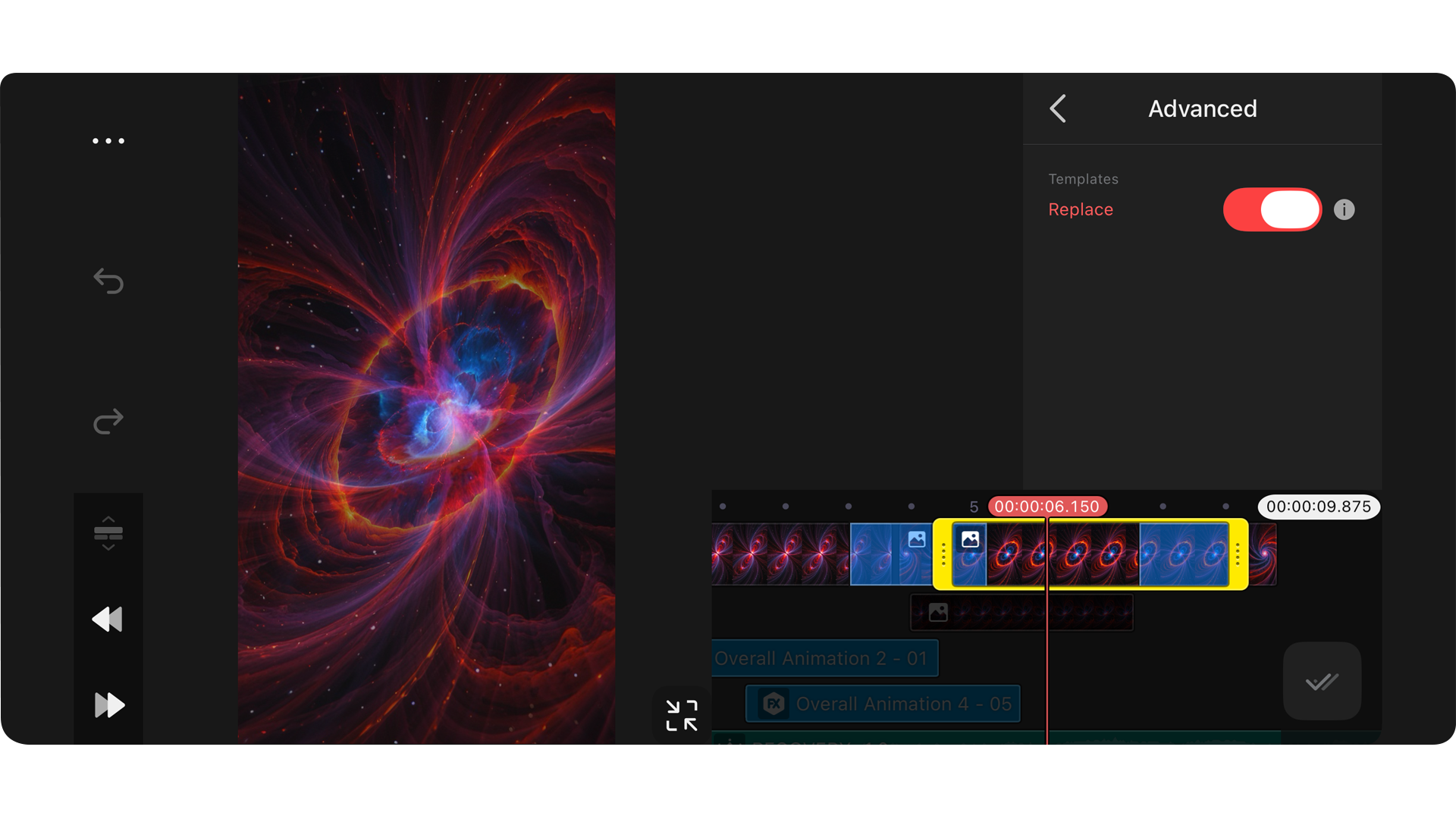 When you select an AI Template to use, KineMaster lets you add videos and images saved on your device before the project is ever opened. If you are creating your own video template, you can do that, too!
The Advanced Replace* tool allows you to mark your media for replacement. When you use Advanced Replace, other editors who download your template from Mix won’t be able to re-use the media you built your template with. Instead, they will need to replace the videos and images with their own before they’re able to edit.
The Advanced Replace tool helps you keep control over your own media while still being able to show your video templates in the best way possible: how you made them!
* The Advanced Replace tool joins the Import Font tool in 8.2 updates to KineMaster for iOS. (These tools are already available for Android editors.)
Multi-Select on Android and iOS: Timeline position and placement control
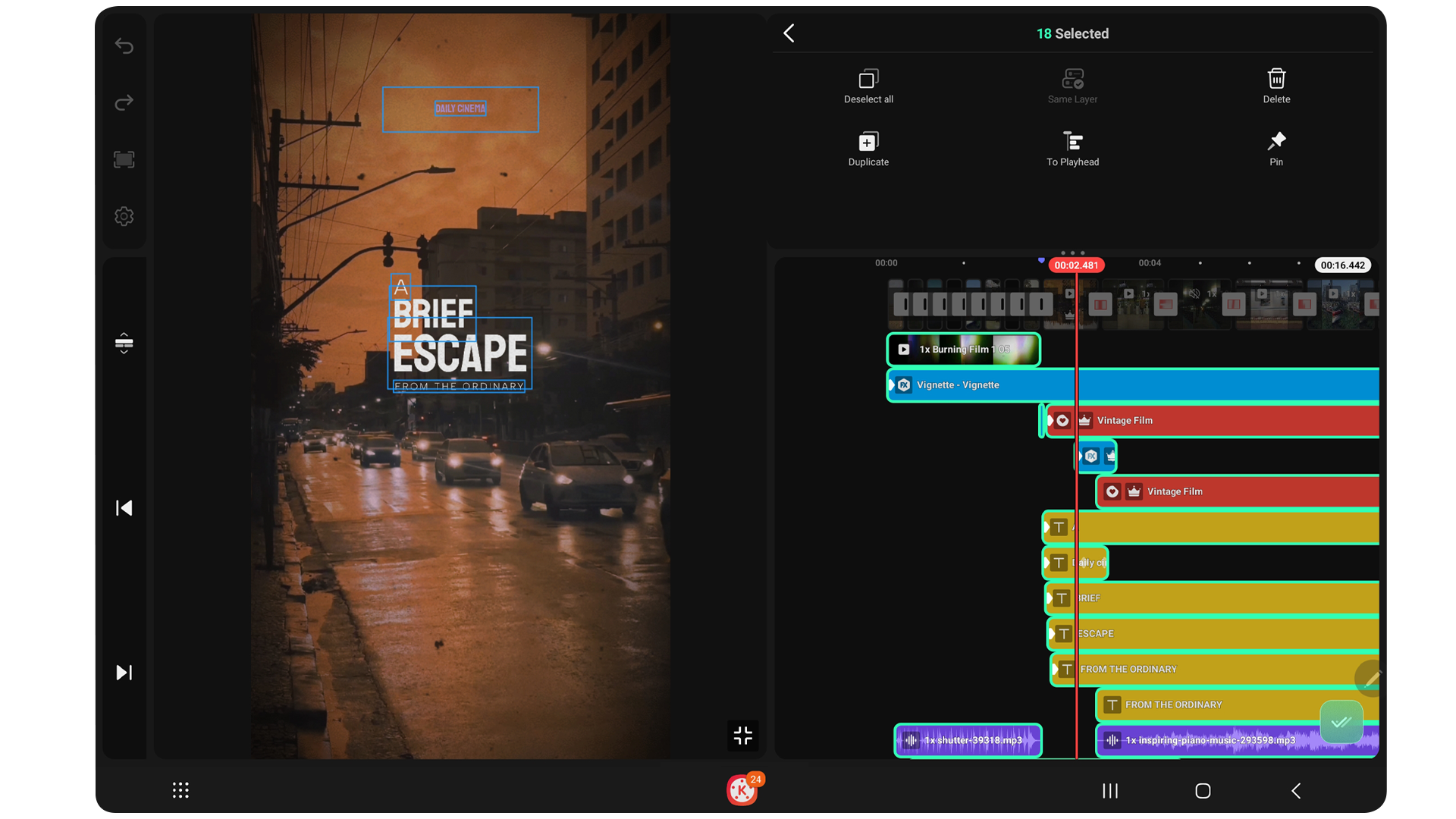 Multi-select is a powerful new tool added to KineMaster 8.2 that makes changing large, complex projects easier. The Multi-select tool lives in the bottom right corner of the Timeline for quick access. When you tap it, the Multi-select options appear in the tool panel if you’re editing in landscape mode or at the bottom in the toolbar if you’re editing in portrait mode.
Mobile video editing apps, including KineMaster, let you batch edit layers with tools like filters, color adjustments, or caption layer styling. However, KineMaster offers a more desktop-like selection option.
Layers that have been selected can be moved together across the Timeline to a new position.
|
• Multi-select options let you select every layer on the Timeline or, if you’ve only got one kind of layer selected, to select all of that layer type.
• Selected layers can be re-positioned, resized, and rotated together on the Preview screen • The Delete button lets you zap all of your selected layers. • The Duplicate button will copy and add your selected layers, offset by the position of the Playhead. • The Snap to Playhead button will align all of the selected layers to the Playhead. • The Pin button will pin every layer to its current Timeline location, preventing retiming if you move or delete a Primary (top row) media layer. |
Handoff and Continue On with KineMaster
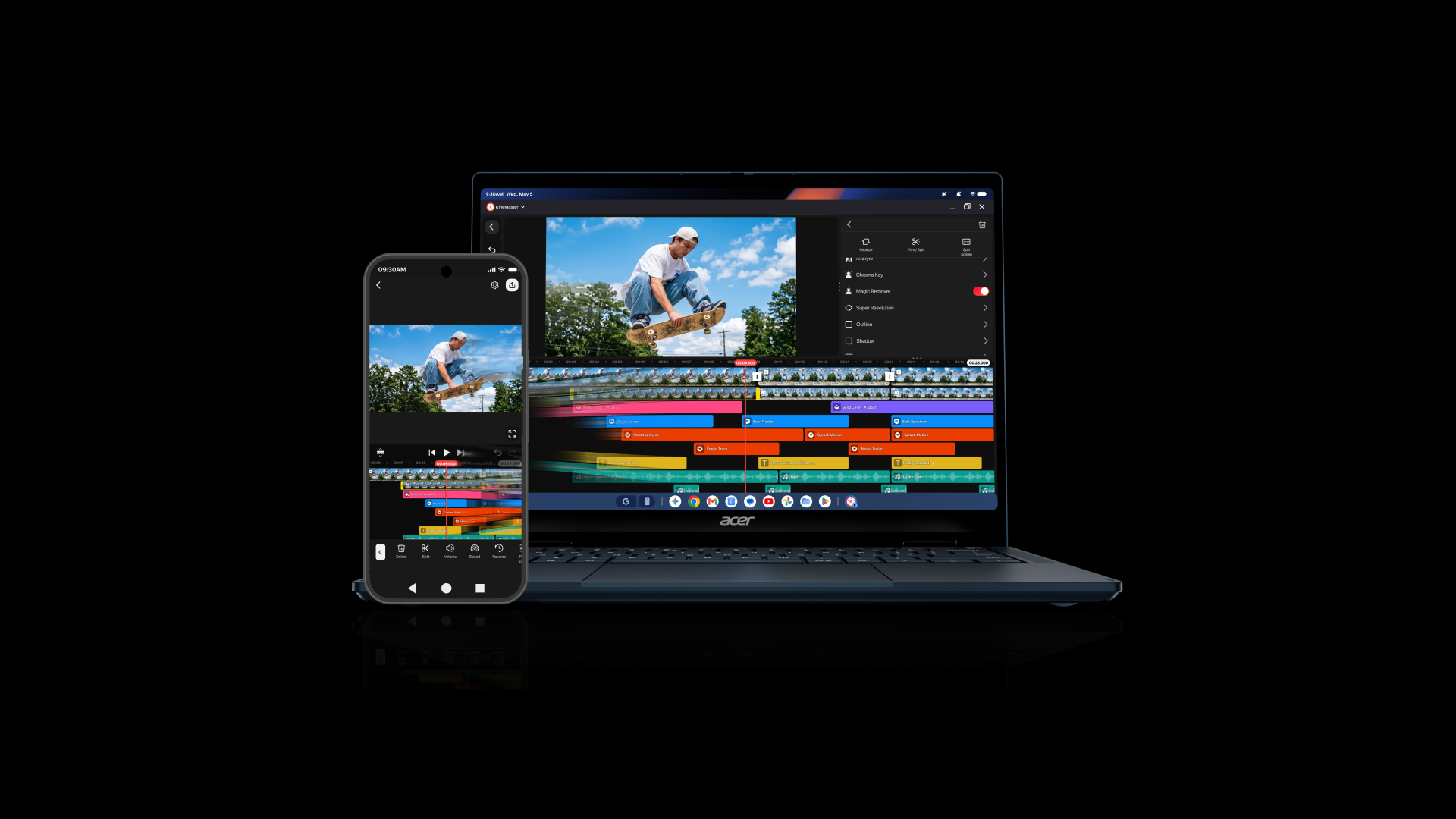
If you’ve found yourself starting a project on your phone and later wished it were easy to continue editing on your tablet, 8.2 is the update you’ve been waiting for.
KineMaster now supports Handoff (for iOS) and Continue On (for Android 17+). Both let you sync your KineMaster project from your phone to a supported iPad, MacBook, Chromebook, or Googlebook when you devices get close.
For iPhone editors, that means you can begin editing on the phone and then transition to editing with KineMaster on your iPad, MacBook, Mac mini, or iMac. Both devices have to be logged in to the same iCloud Apple account and on the same network.
For Android editors, Continue On lets you start with a project on your Android phone and then transition to editing on a tablet or Chromebook or Googlebook. Continue On is available for devices that have Android 17 or newer (both devices need to be logged into the same Google account).
Big Edits for Big Screens
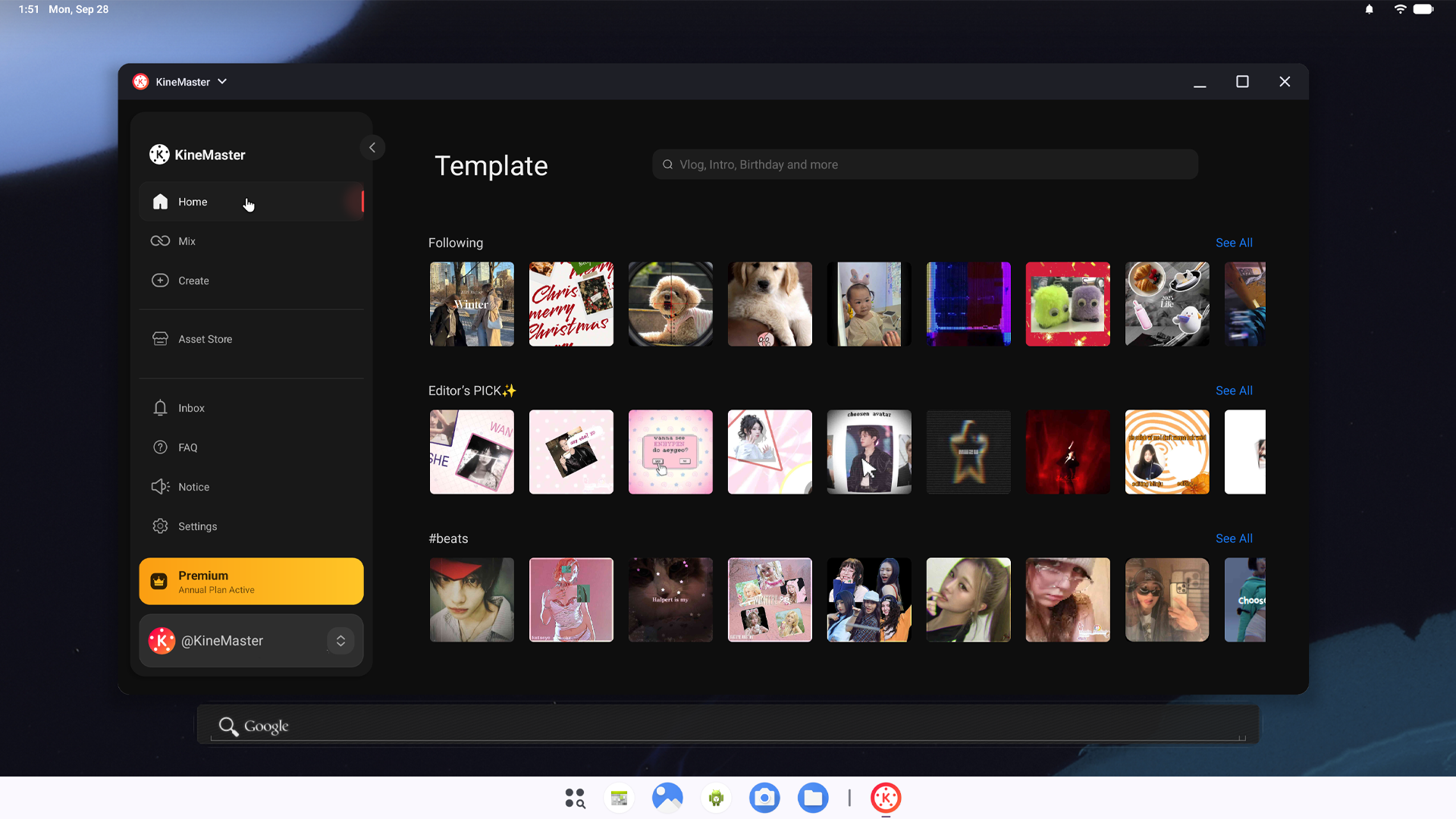 The latest version of KineMaster has a ton of great quality of life improvements for tablets, Chromebooks, and Googlebooks. Editors making videos with KineMaster on large screens now get an editing interface designed for them.
Right at Home on Your Tablet: The Home, Mix, Create, Inbox, and Me screens are now conveniently located in a sidebar that can collapse to show you more templates and projects at once. Buttons previously located at the top of the Home and Create screens (Asset Store, FAQ, Announcements, and Settings) have also moved to the sidebar.
On KineMaster’s Editing screen there are some extremely nice-to-have adjustments that let you see more of your project and customize your workspace. Handles above the TImeline and left of the Tool Panel let you change how much screen space those areas take up. Pulling the Timeline handle up lets you see more layers. Pulling the Tool Panel handle left gives you bigger asset previews.
Some tool panels have received a fresh coat of paint, including Handwriting, where all of the shapes are now in one quick-access button.
When you save a project, a side panel opens where you can select your export settings and preview your finished video.
The Asset Store has also been streamlined for easy browsing and downloads. Now arranged in a three column layout, changing categories, previewing and downloading assets happens without needing to back out of one menu to go into another.
FAQ
Can I edit AI Templates after I finish adding my videos and photos?
Yes! KineMaster lets you continue editing an AI Template using the KineMaster editor for free.
Can I install .zip files with fonts in them?
No. KineMaster can import .ttf and .otf font files that are saved on your phone or tablet. It cannot import .zip files.
Does Multi-select let me apply the same filter to every image?
No. KineMaster’s Multi-select tool does not overlap with tools like Filter which already have an “Apply to All” function. Use Multi-select for batch positioning changes in the video frame and on the Timeline or for layer deletion.
Does KineMaster work with Googlebooks?
Yes! KineMaster 8.2’s tablet UI revisions look and feel amazing on the new Googlebook.
This article was written and reviewed by the KineMaster Editorial Team.

Two apps, one subscription!
Subscribers to KineMaster Premium get Spring Premium for free!
Create Mind-blowing Videos, Fast and Easy now!