
Make Your YouTube Shorts Perfect
May 21, 2026 · Alex Grant
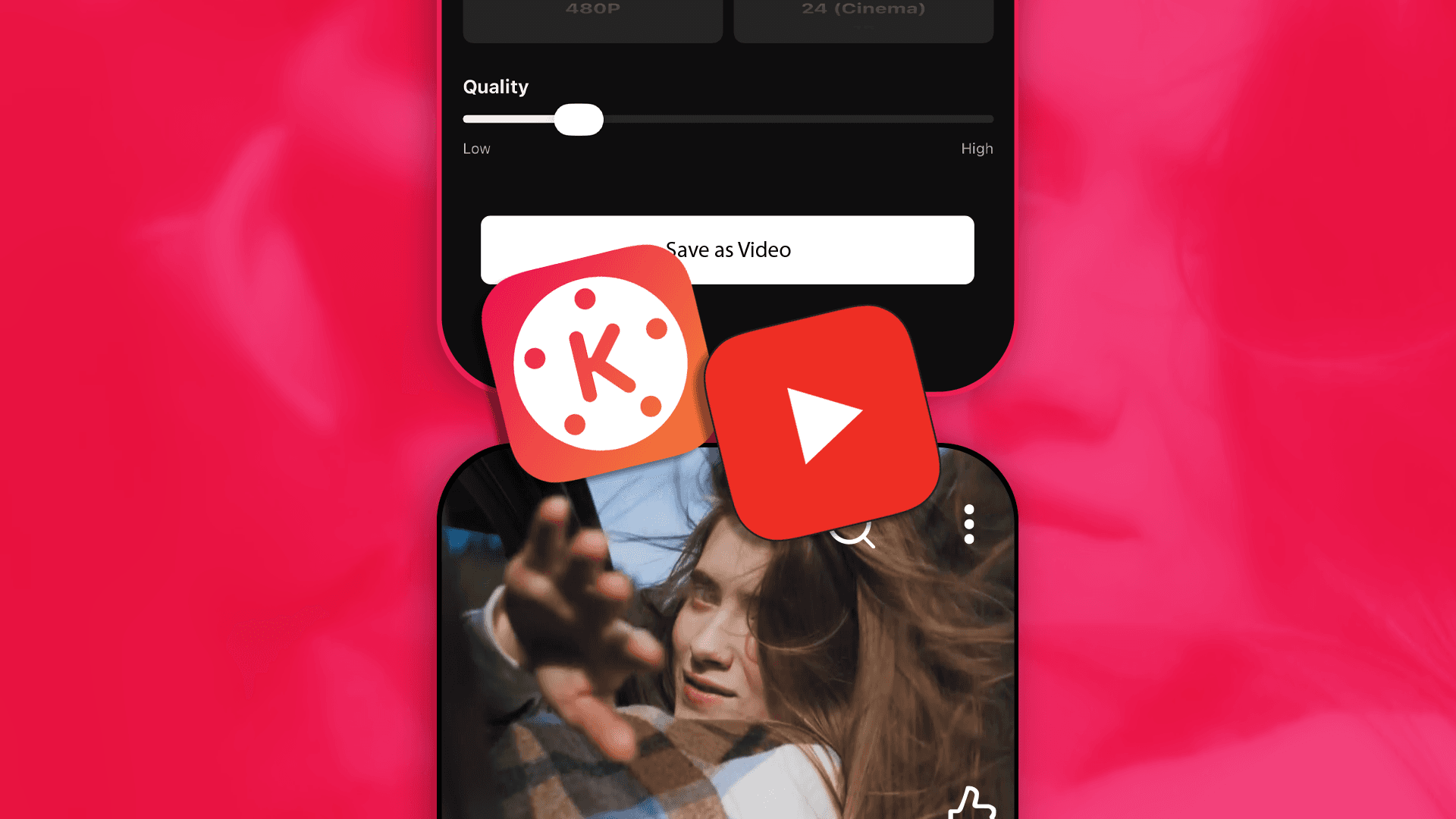
Format: Most Compatible (H.264)
Resolution: FHD 1080P, 2K, or 4K
Frame Rate: 30 or 60 FPS
Quality: A minimum of 8 Mbps for 30 FPS or 25 for 60 FPS (Keep your file size under 2GB)
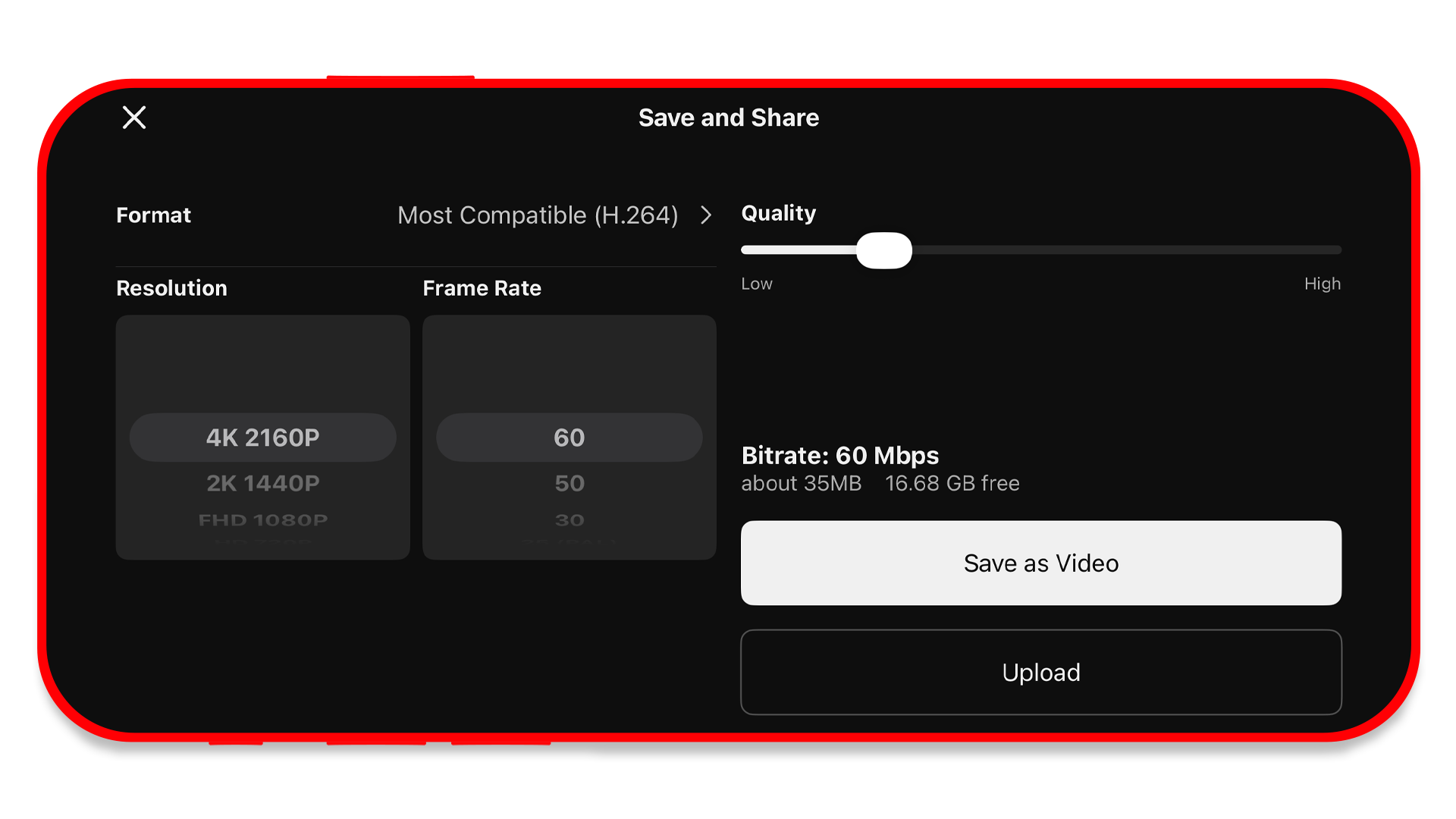 Vertical videos that you save in 4K at 60 FPS look (and sound) amazing, but they’re not necessarily ideal to upload everywhere. Some vertical video platforms will transcode your beautiful 4K footage down to 1080p (or lower… yikes). Not YouTube! You can make Shorts at KineMaster’s maximum settings. But there are some things to keep in mind when you do that.
Unlike regular YouTube videos, which are viewed on a wide variety of devices (from old laptops to brand-new TVs) Shorts are almost exclusively watched on phones. Most phones have at least 1080p screens, but higher resolution displays aren’t a guarantee.
 If storage space is tight on your phone or tablet, saving your Short at 1080p is a fair trade off for producing a video at a resolution that most people will have no problem with viewing.
Not sure why your bitrate matters? Check out this blog post where we show you how to master bitrate to ensure your videos look amazing.
When you upload your video to YouTube Shorts, you should be doing it on a phone. This lets you select a frame from your video as a thumbnail (an option not available on tablets or desktop computers).
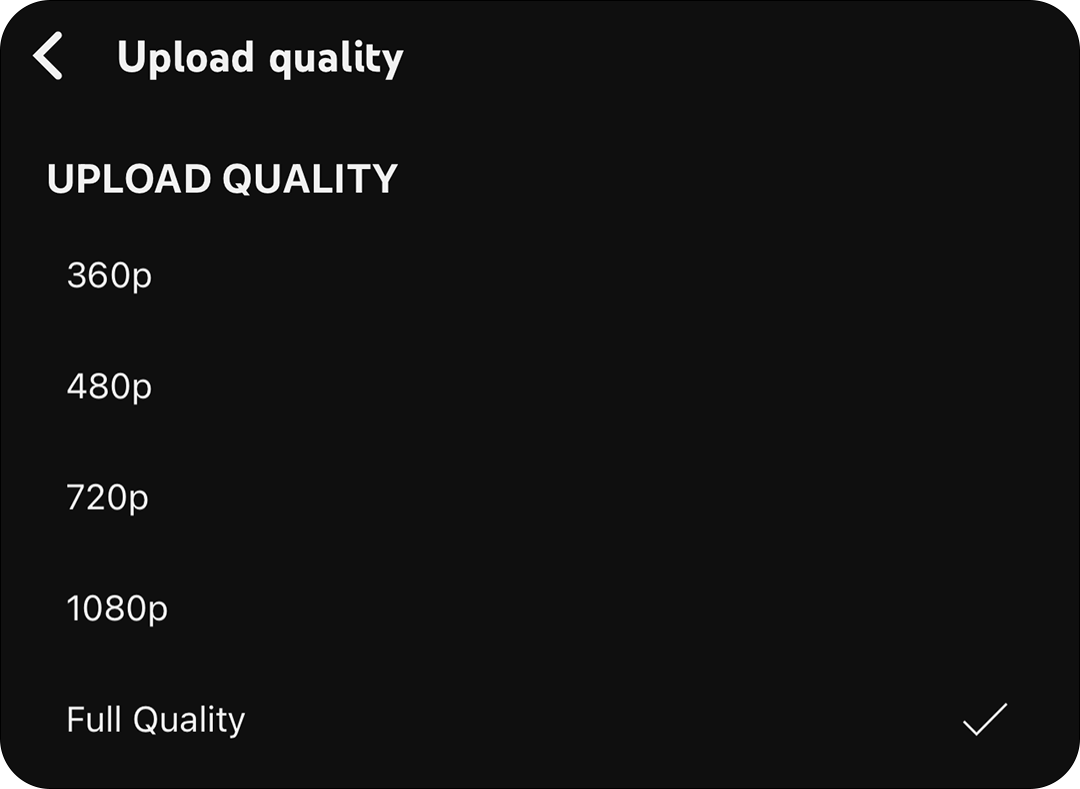
If the option is available in the YouTube app, be sure to enable High Quality uploads. To do that, tap Settings in the YouTube app. Scroll down to Video and audio preferences and tap Uploads. If Upload quality isn’t already “Full Quality,” tap it and change it. This allows you to upload 4K videos to YouTube Shorts.
Note: At the time of writing, this option isn’t available for some iOS or Android phones or tablets.
I did all this and my video still doesn’t look high resolution! Save your KineMaster video with the same resolution and frame rate as your lowest-quality video or image. When you save a KineMaster project at a higher resolution than your media, it will automatically scale up with frequently poor results. If you need to increase the resolution of a low-quality video or image, try applying the Super Resolution tool first.
There are three things to consider when watching your Short after upload. If you’re watching it immediately after you upload, you may need to check to see if YouTube has finished processing your Short in 4K. You’ll see a 4K (instead of SD) icon when it has.
If the 4K icon is there, but the video doesn’t look the way you expect, check the playback settings. Tap settings on your video, and tap Quality.
Finally, if you’re on a slow wifi network or 3G (sometimes even 4G) cellular network, your videos may be getting transcoded automatically. Try connecting to a faster network, if possible, and play back your video again.
FAQ
Can I upload 4K videos to YouTube Shorts?
Yes. Unlike Instagram and TikTok, YouTube Shorts supports 4K short-form videos. However, you need to keep your video’s file size under 2GB.
What export settings should I use in KineMaster for maximum quality YouTube Shorts?
YouTube can handle Shorts that are up to 4K and 60 FPS, but if your video doesn’t use footage or images that match those specs, you’re better off using lower settings for optimal visual results.
What settings in the YouTube app need to be enabled to upload 4K Shorts?
If the option is available, make sure Full Quality is selected in the Upload Quality setting. If this isn’t checked and you’re uploading on a slower wifi connection or a data connection, your video may have unwanted compression added.
This article was written and reviewed by the KineMaster Editorial Team.

Two apps, one subscription!
Subscribers to KineMaster Premium get Spring Premium for free!
Create Mind-blowing Videos, Fast and Easy now!