
KineMaster 8.0 Goes to New Heights
November 21, 2025 · Alex Grant
KineMaster 8.0 is now officially available for iOS and Android devices. Start editing today when you download (or update) the app from Apple’s App Store or Google Play. Now, editors around the world can create incredible videos with landscape or portrait editing screens.
Get Vertical when You Update to 8.0
When you open KineMaster 8.0 for the first time, a new slide carousel invites you to try editing video in portrait mode.
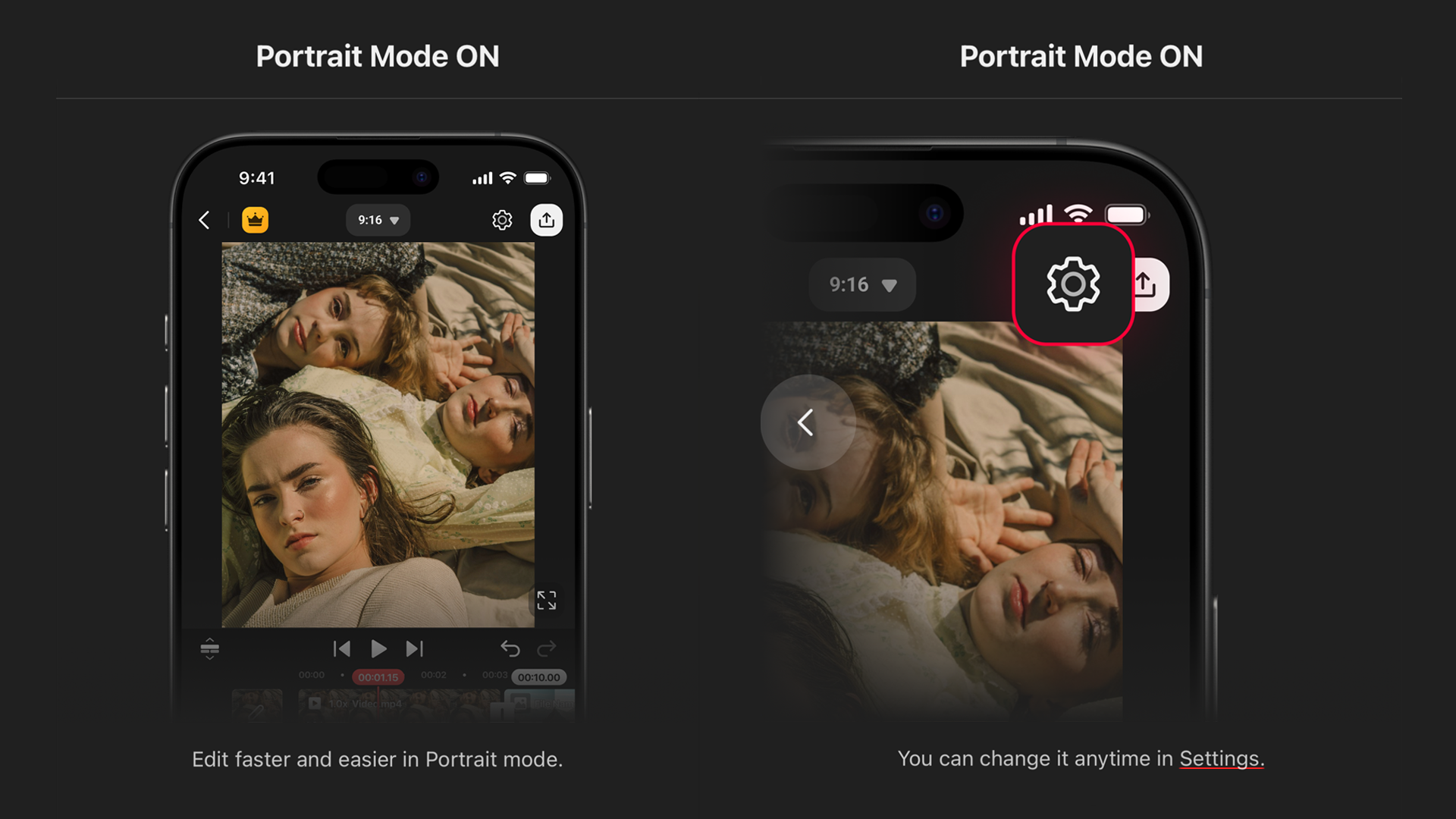 When you turn on Portrait Mode in KineMaster, the editing interface changes from a horizontal layout to a vertical one. This can be changed on a project-by-project basis with the Settings button at the top of the vertical Editing screen or on the left side of the horizontal Editing screen.
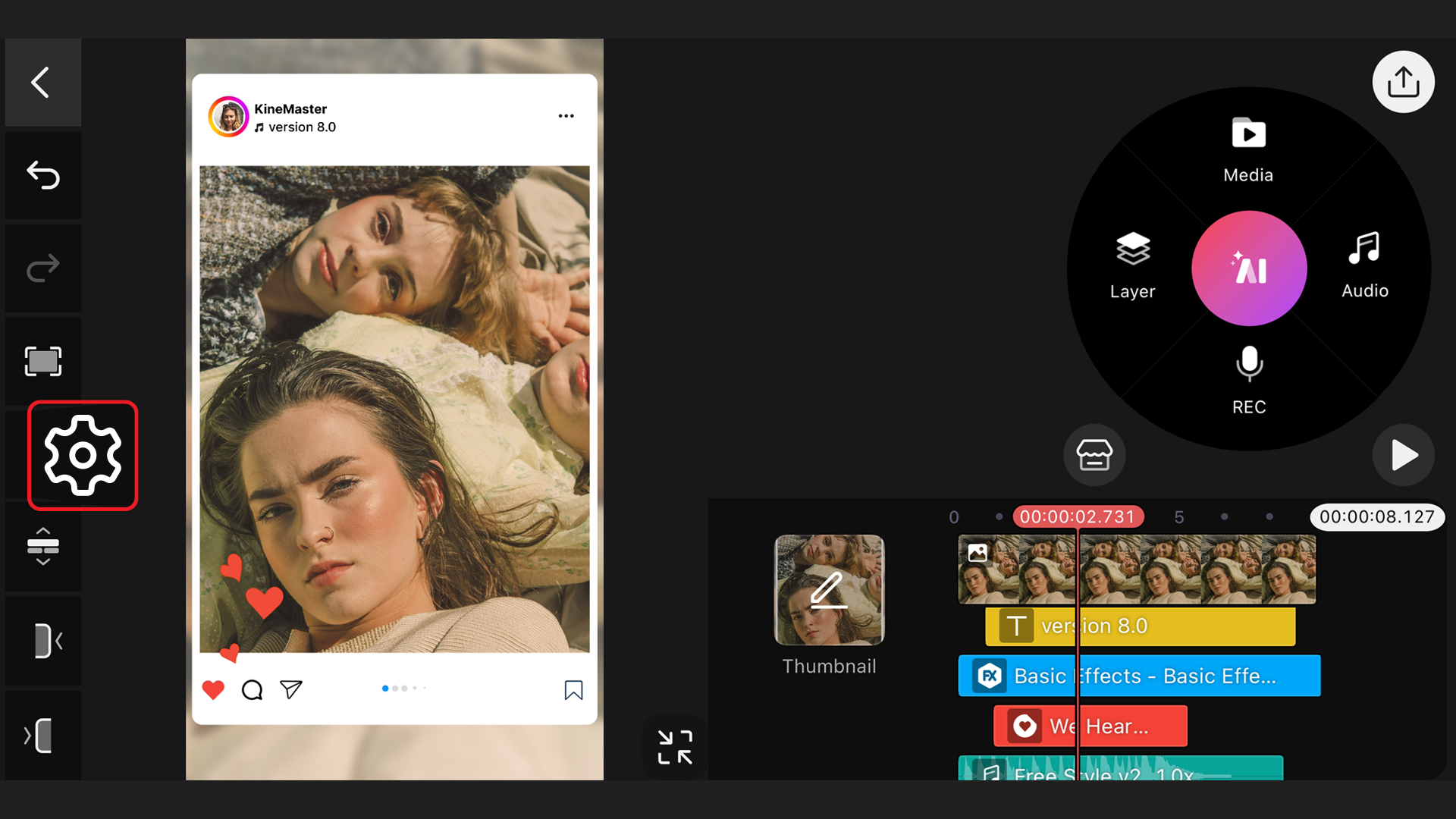
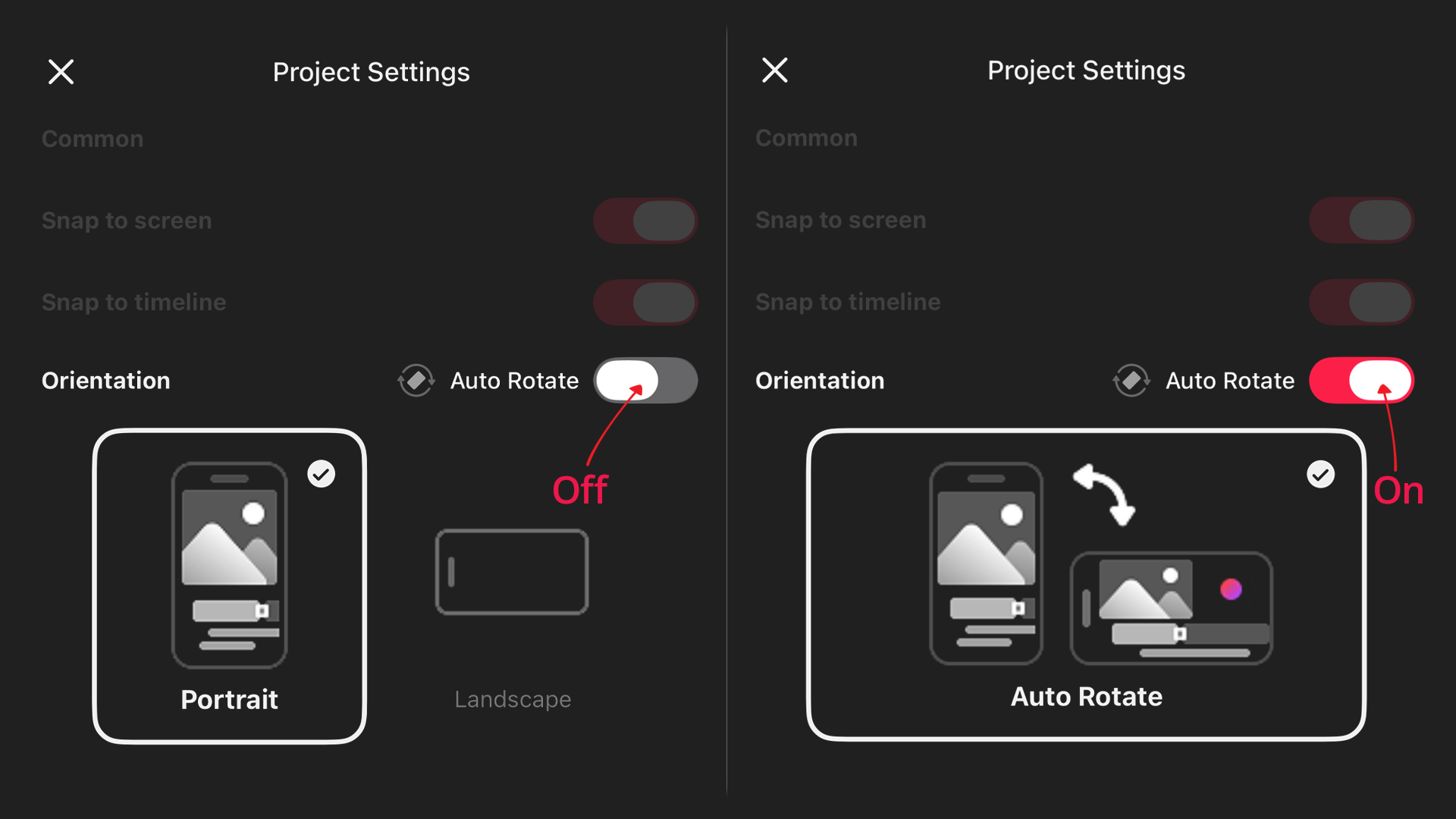
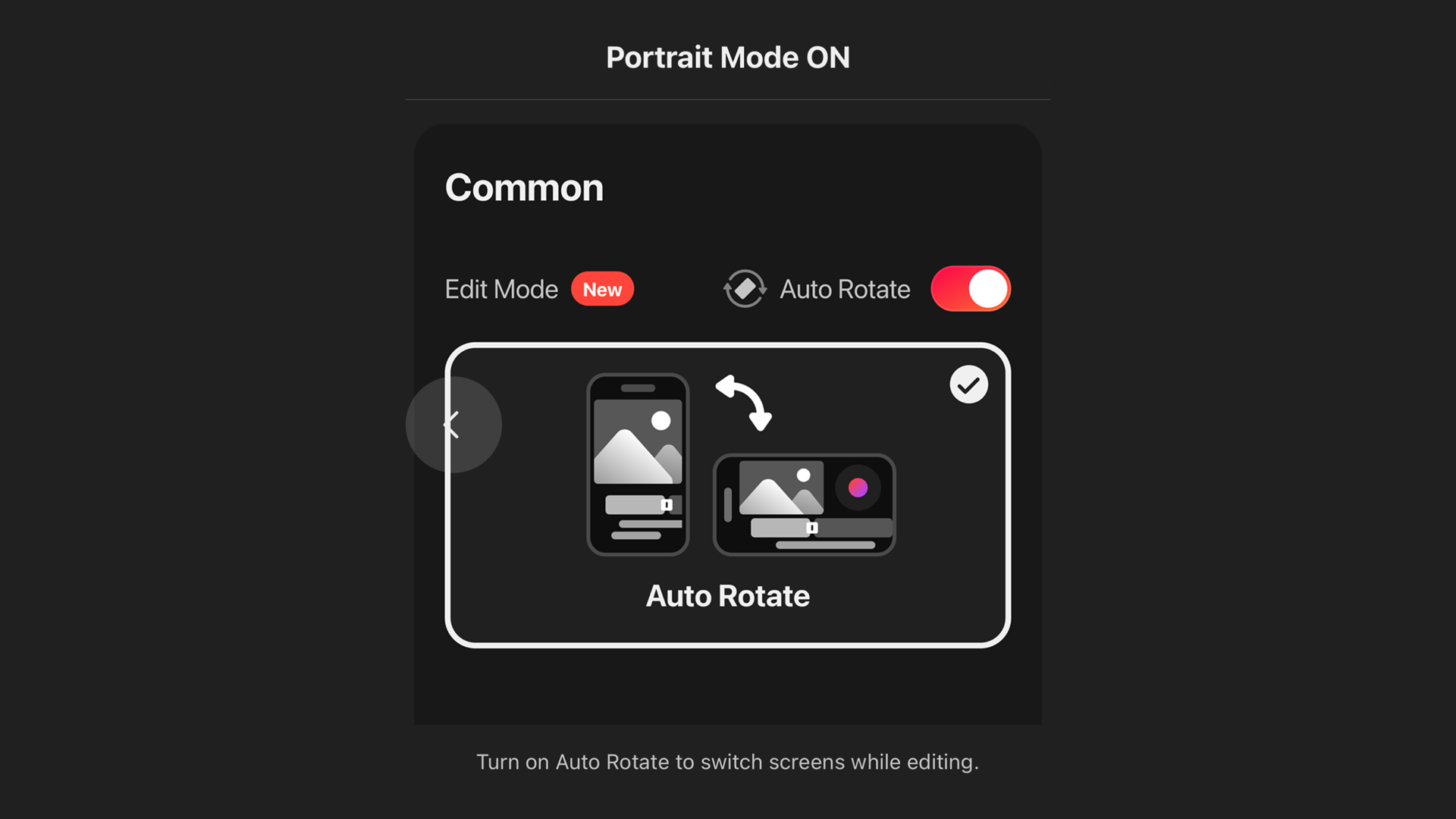 The Editing Settings let you choose to lock the screen to only one interface. Or, you can turn on Auto-rotate, which will let you change the editing screen depending on how you are holding your phone or tablet.
Go with the Flow
Why go vertical? For some, it’s a matter of preference. Holding your phone in one hand, or resting your tablet on a desk stand just feels nicer length-wise.
Practically speaking, it’s much easier to manage a project when all of your apps are pointing the same direction. If you find yourself switching back and forth between your Photos or Gallery apps and KineMaster, or between Canva, Adobe’s Lightroom, Procreate… and KineMaster, this will eliminate the repetitive rotation required to do that.
Put a Spring in Your Step
KineMaster’s vertical UI shares DNA with Spring, a video editor optimized for fast, fun editing. (If you haven’t tried Spring yet, you really should.) But where Spring keeps things easy, KineMaster’s more in-depth approach to precision editing turns the vertical interface into a new, powerful way to interact with your video projects.
Please Excuse Our Dust
KineMaster’s new vertical editing interface is already an incredibly robust way to interact with your video projects, from an expanded view of your preview and timeline to quick access to contextual editing tools with a single thumb-swipe. But! Plans to refine and increase productivity aren’t off the table. Keep your eyes peeled in future app updates to see incredible features and improvements. KineMaster 8.0 is just the beginning of a whole new way to edit.
Whether you’re just starting your video editing journey or are a seasoned pro, KineMaster gives you the flexibility and tools you need to create astonishing videos entirely on your phone or tablet. Connected to KineMaster’s enormous Asset Store library of video effects, fonts, graphics, animations, music, sound effects, and AI plug-ins, your mobile device can bet built out into a creative powerhouse. Discover the power, intuitive, and flexible nature of the best mobile video editor. Make your next awesome video with KineMaster!
FAQ
What’s new with KineMaster 8.0?
KineMaster 8.0 adds an optional vertical interface, complete with all of the tools and options you’re familiar with, but in a new orientation. You can get the best of both editing interfaces with Auto-rotate enabled, which can be done from the Project Settings menu.
Can I lock KineMaster’s editing screen rotation?
Yes! If you don’t want to risk accidentally switching UI modes during your editing, just tap the Project Settings button at the top of the Editing screen. Then, turn Auto-rotate off.
How can I speed up my workflow with KineMaster?
KineMaster 8.0’s new option for vertical editing lets you match your preference with other apps that you use to create content. Many tools, like your phone or tablet’s camera, also allow you to choose how you hold your device. Some apps don’t. When that happens, KineMaster 8.0 provides the flexibility to keep your editing on point by using the same screen orientation that those other apps offer.
Where can I get the latest update?
You can download KineMaster from Apple’s App Store onto your iPhone, iPad, or Apple Silicon laptop or desktop computer. You can get KineMaster for your Android phone or tablet from Google Play.
FAQ
Can I turn off Auto Rotate?
Where is the AI button in vertical mode?
Where is the Asset Store button in vertical mode?

Two apps, one subscription!
Subscribers to KineMaster Premium get Spring Premium for free!
Create Mind-blowing Videos, Fast and Easy now!